
Export a Folder Structure to Excel on Windows
Turn any Windows folder, including its subfolders and files, into a structured and professionally formatted Excel report. TreeXL makes it possible to export a folder tree directly from Windows File Explorer without writing a script.
Download TreeXL Free →See What the Excel Report Looks Like
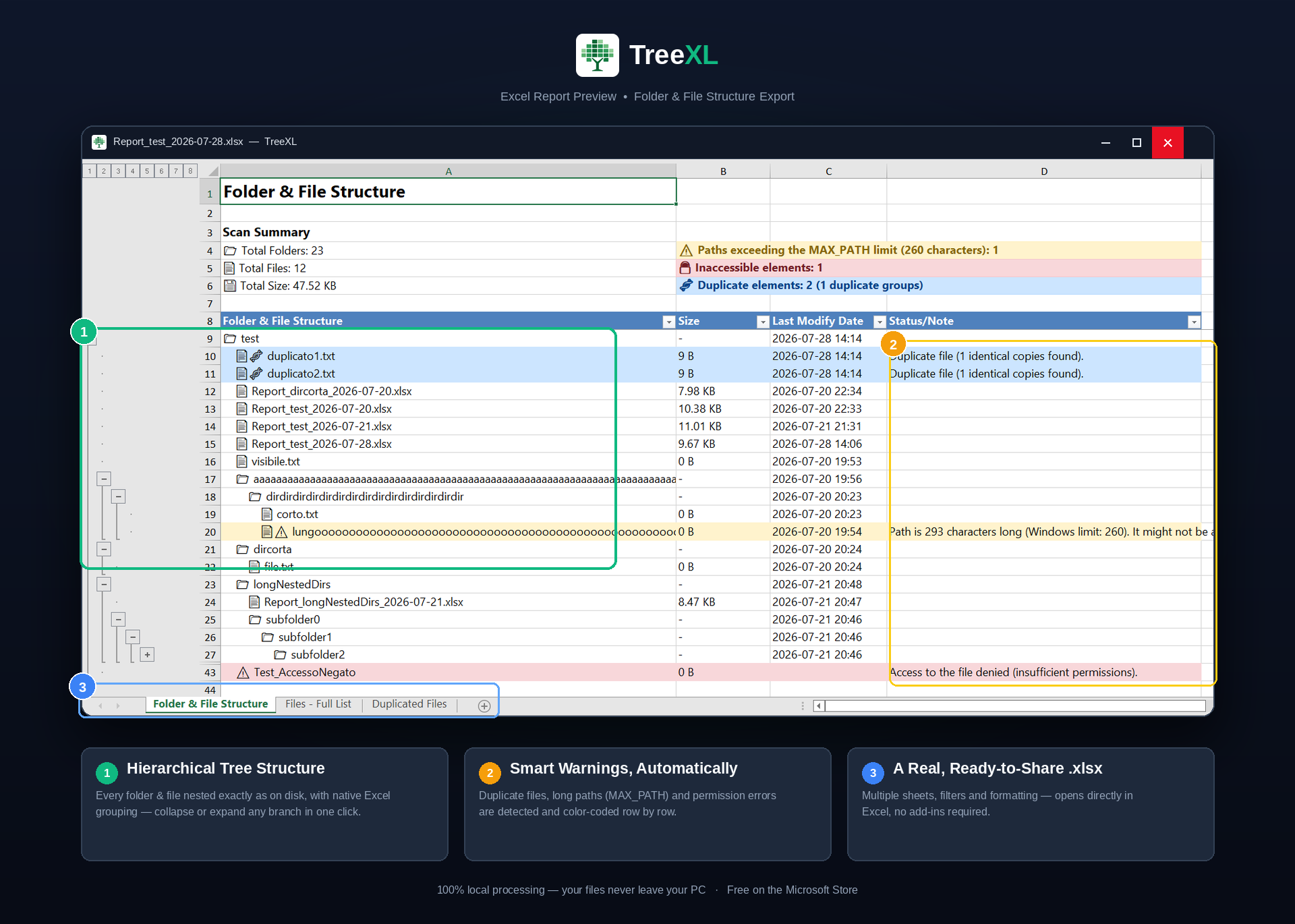
TreeXL turns a Windows folder structure into a structured Excel workbook, preserving the hierarchy while highlighting important issues such as duplicate files, long paths and inaccessible items.
The Quickest Way to Export a Folder Structure to Excel
If you need to turn a Windows directory into an Excel spreadsheet, the basic process is simple:
1. Select a Folder
Open Windows File Explorer and select the folder containing the files and subfolders you want to document.
2. Run TreeXL
Launch TreeXL directly from the Windows context menu.
3. Get an Excel Report
TreeXL scans the directory and creates an .xlsx report containing the folder and file structure.
What Does "Export Folder Structure to Excel" Mean?
A folder structure describes how directories and files are organized inside a storage location.
For example, a Windows project folder might contain:
Exporting this structure to Excel means converting that hierarchy into a spreadsheet that can be searched, filtered, reviewed, documented and shared.
This can be particularly useful when the directory contains hundreds, thousands or more files and manually browsing the structure is no longer practical.
Why Export a Folder Structure to Excel?
A text-based folder tree is useful for quickly looking at a directory. Excel becomes more useful when you need to work with the information.
Search
Search the exported data for specific file names, extensions, folders or paths.
Filter
Filter the report to focus on particular parts of a large directory.
Document
Keep a readable snapshot of a folder structure for documentation or project records.
Share
Send the report to colleagues, clients, administrators or project teams.
Review
Analyze the contents of a directory before a migration, cleanup or restructuring operation.
Archive
Keep a lightweight record of how a directory was organized at a particular point in time.
How to Export a Folder Structure to Excel Manually
Windows does not provide a simple one-click File Explorer command that turns an entire directory hierarchy into a polished Excel report.
As a result, users commonly resort to a combination of File Explorer, Command Prompt, PowerShell and Excel.
Step 1: Find the folder
Navigate to the directory you want to document.
Step 2: Enumerate the contents
You can use a Windows command or PowerShell to recursively retrieve files and folders.
Step 3: Export the results
The resulting data can then be saved to CSV or another format and opened in Excel.
Step 4: Format the spreadsheet
If you want a professional report rather than raw command output, additional formatting and organization may be required.
Export a Folder Tree with Command Prompt
Windows includes the tree command, which can display a directory structure from the command line.
The /F option includes files in the output.
This is a convenient way to quickly inspect a directory hierarchy, but the result is text output rather than a ready-to-use Excel report.
For simple documentation, this may be enough. If you need a spreadsheet that can be filtered, reviewed and shared, additional processing is required.
Export a Folder Structure to Excel with PowerShell
PowerShell is another common solution for exporting Windows folder structures.
A recursive file listing can be generated with:
The results can then be exported to CSV:
The CSV file can be opened with Microsoft Excel.
This is a powerful approach and is especially useful for administrators who already use PowerShell in their workflows.
However, creating a polished report with additional information, formatting, hierarchy and error handling can require considerably more scripting.
If PowerShell is exactly what you are looking for, see the dedicated PowerShell folder export guide .
Export a Folder Structure to Excel Without Writing a Script
TreeXL is designed for users who want the result of a directory export without having to build and maintain their own script.
Instead of opening a terminal and entering commands, TreeXL integrates with Windows File Explorer.
Windows Context Menu
Start the export from the folder's right-click context menu.
Recursive Scanning
Include the folder hierarchy and the files contained within nested directories.
Excel Output
Generate a structured .xlsx report instead of raw command-line output.
No Custom Script
No need to write, save or maintain a PowerShell script for a recurring export.
What Can a TreeXL Excel Report Be Used For?
The generated spreadsheet can serve as a practical reference for many different workflows.
- Documenting a project folder
- Reviewing a file server
- Preparing a data migration
- Reviewing an archive before cleanup
- Sharing a directory structure with a client
- Creating technical documentation
- Comparing the organization of files and folders
- Investigating large or unfamiliar directories
Exporting Real-World Windows Folders Is Not Always Simple
A directory in a real Windows environment may contain much more than a clean hierarchy of ordinary files.
Large file servers and shared folders can contain inaccessible directories, duplicate files and very long paths.
Long file paths
Deeply nested directories can produce very long paths. These paths may become important during migrations, backups or other file-management operations.
TreeXL can identify paths exceeding the traditional 260-character threshold and highlight them in the generated report.
Inaccessible folders
Not every folder is necessarily accessible to the current Windows user.
When permissions prevent access to part of a directory, the limitation should be visible rather than silently ignored.
Duplicate files
Large collections can contain duplicate files that are difficult to identify manually.
Duplicate detection can be useful when preparing data for cleanup, restructuring or migration.
Common Use Cases for Exporting Folder Structures to Excel
IT and System Administration
System administrators can create a readable representation of shared folders and file servers for documentation, audits and infrastructure projects.
Data Migration
Before moving data to a new server, NAS, storage platform or cloud environment, an exported structure can provide a useful reference for the existing organization.
Software Development
Developers may need to document project directories, generated files, assets or deployment structures.
Consulting
IT consultants can use folder exports when assessing client environments or preparing migration and restructuring projects.
Project Handover
A spreadsheet can make it easier for another person to understand the organization of a project without manually exploring every folder.
File Cleanup
An exported structure can be used as a starting point for reviewing large directories before archiving or deleting unnecessary data.
Best Ways to Export a Folder Structure to Excel
There is no single method that is best for every situation. The right choice depends on whether you prefer control, automation or simplicity.
| Method | Easy to use | Recursive | Excel output | Requires scripting | Best for |
|---|---|---|---|---|---|
| Manual | Yes | Manual | Manual | No | Small folders |
| Command Prompt | Moderate | Yes | Additional work | No | Quick text output |
| PowerShell | Moderate | Yes | Requires processing | Usually | Automation |
| TreeXL | Yes | Yes | Yes | No | Ready-to-use reports |
Folder Tree vs Folder Inventory
These terms are related, but they are not exactly the same.
A folder tree primarily focuses on the hierarchy of directories: which folders are inside which other folders.
A folder inventory generally has a broader purpose and can include files and additional information useful for documentation, auditing or migration.
TreeXL can be useful for both workflows because it starts from the actual Windows file system and turns the structure into a report that can be examined in Excel.
If your primary goal is simply generating a visual or structured folder tree, see the Windows Folder Tree Generator page.
Who Needs to Export Folder Structures to Excel?
System Administrators
Document shared folders, file servers and infrastructure environments.
IT Professionals
Prepare data for audits, migrations and restructuring projects.
Developers
Document application and project directory structures.
Data Managers
Analyze and document large collections of files.
Consultants
Produce client-ready documentation during technical assessments.
Freelancers
Create readable file structure documentation for projects and client handovers.
Frequently Asked Questions
How can I export a folder structure to Excel?
You can manually copy directory information, use Command Prompt or PowerShell, or use a dedicated application such as TreeXL. TreeXL scans a Windows folder and creates a formatted Excel report.
Can I export a folder tree to Excel without PowerShell?
Yes. TreeXL provides a graphical Windows application that can export a folder structure to an Excel report without requiring you to write or run a PowerShell script.
How do I export folders and subfolders to Excel?
The folder must be scanned recursively so that nested directories are included. PowerShell can perform a recursive scan, while TreeXL provides a graphical workflow for generating the resulting Excel report.
Can PowerShell export a folder structure to Excel?
PowerShell can recursively enumerate files and folders and export the resulting information. Additional scripting or modules may be required when a formatted Excel report is needed.
Can I export a folder directly from File Explorer?
Yes. TreeXL integrates with the Windows File Explorer context menu, allowing you to start the export from the folder you want to scan.
Can TreeXL export files as well as folders?
Yes. TreeXL is designed to report both the folder hierarchy and the files contained within the selected directory.
Is PowerShell better than TreeXL?
PowerShell is an excellent choice when you need a highly customized or automated workflow. TreeXL is intended for users who want to generate a structured Excel report without writing and maintaining their own script.
What happens with inaccessible folders?
Windows permissions can prevent applications from reading certain directories. TreeXL can identify inaccessible items so that limitations in the exported structure are visible for review.
What about very long Windows paths?
Deeply nested folders can result in very long paths. TreeXL can identify paths exceeding the traditional 260-character threshold and surface them in the report.
Is a folder structure export the same as a backup?
No. An exported folder structure is documentation of the organization and contents of a file system. It does not contain a backup copy of the original files.
Export Your Windows Folder Structure to Excel
Skip the manual copy-and-paste process and avoid writing a custom script every time you need a readable folder structure report.
Select a folder in Windows File Explorer, launch TreeXL, and create your Excel report.
Download TreeXL Free →