
Windows Folder Inventory Tool: Create a File and Folder Inventory in Excel
Need to understand what is stored inside a Windows folder, file server or shared directory? Create a structured inventory of files and folders and export it to a professional Excel report with TreeXL.
Download TreeXL Free →Example of a Windows Folder Inventory Report
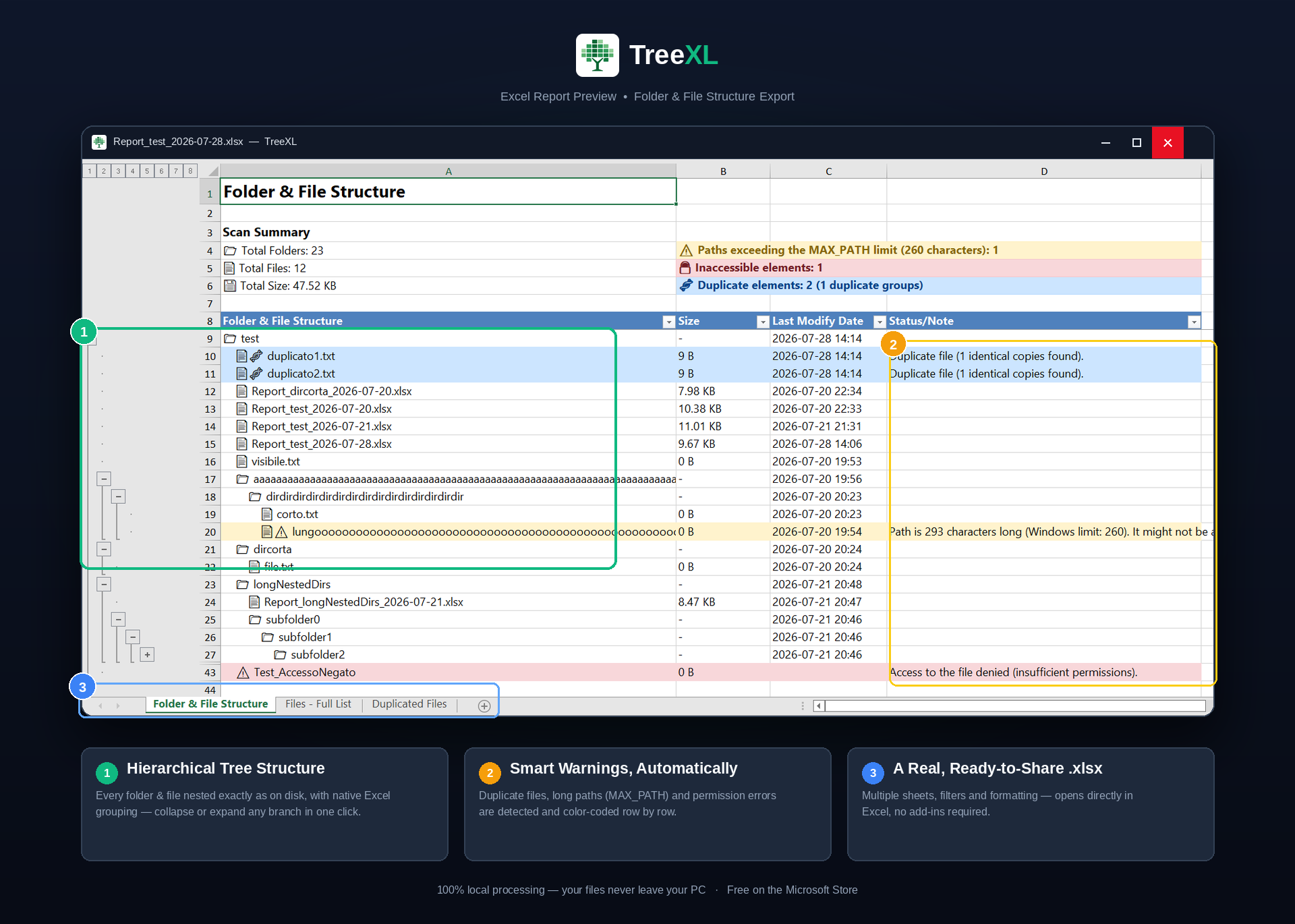
The generated workbook provides a structured view of folders and files, while clearly identifying duplicates, long paths and items that could not be accessed during the scan.
What Is a Windows File and Folder Inventory?
A file inventory is a structured overview of the contents of a directory or storage location. Instead of navigating through folders one by one, an inventory gives you a consolidated view of the data.
A simple folder might look like this:
For a small directory, manually browsing this structure is easy. For a large file server or project archive, however, understanding the complete structure can become considerably more difficult.
TreeXL turns a Windows folder structure into an Excel inventory while preserving the original hierarchy. This makes the result easier to review, filter, sort and share with other people.
Why Create a Folder Inventory?
There are many situations where knowing what exists inside a directory is the first step toward making a decision about the data.
Data Migration
Inventory existing files before moving data to a new server, NAS, cloud platform or storage system.
File Server Audits
Create a snapshot of directory structures for documentation and infrastructure reviews.
Data Cleanup
Use an inventory to understand large or poorly organized directories before deciding what can be archived or removed.
Project Documentation
Document the files and folders associated with a software, engineering or business project.
Client Handover
Provide a readable overview of the files included in a project or delivery.
IT Troubleshooting
Quickly inspect a directory when investigating unexpected file organization or access problems.
How to Create a Windows Folder Inventory
The right method depends on the size of the directory and the level of detail you need.
Method 1: Browse the folder manually
For a small folder, Windows File Explorer may be all you need. You can navigate through the folders and inspect their contents directly.
The problem appears when you need a complete record of hundreds or thousands of files. Manually copying names and paths into a spreadsheet is slow and easy to get wrong.
Method 2: Use Command Prompt
Windows includes commands that can enumerate directory contents.
This is useful for creating a quick textual representation of the folder hierarchy. However, the output is primarily intended for viewing rather than analysis in Excel.
Method 3: Use PowerShell
PowerShell provides much more flexibility and is a good option when the inventory needs to be part of an automated workflow.
The output can be further processed and exported, for example to CSV.
This approach is powerful, but creating a polished report with additional logic can require a custom script.
What Should a File Inventory Contain?
The information required depends on the purpose of the inventory. A useful inventory should at minimum make it possible to understand where an item belongs within the directory hierarchy.
- File and folder names
- Folder hierarchy
- File and folder paths
- Clear distinction between files and folders
- Identification of items that could not be accessed
- Visibility of unusually long paths
- Detection of duplicate files when relevant
Create a Windows Folder Inventory with TreeXL
TreeXL is designed for users who want a structured Excel report without having to build or maintain a custom script.
The workflow starts from Windows File Explorer. Select the folder you want to inspect and launch TreeXL from the context menu.
1. Select the Folder
Choose the directory you want to inventory in Windows File Explorer.
2. Launch TreeXL
Start the export directly from the Windows context menu.
3. Review the Report
Open the generated .xlsx file in Excel and use it for documentation, analysis or sharing.
What Happens with Difficult Files and Folders?
Real-world file systems often contain more than just ordinary files and folders. A useful inventory should also make potential problems visible.
Long Windows paths
Deeply nested directories can result in very long file paths. These can become relevant during migrations, backups or other file-management operations.
TreeXL can identify paths exceeding the traditional 260-character Windows path length threshold and surface them in the report.
Inaccessible folders
A user may not have permission to read every directory inside a file server or shared location.
Instead of silently assuming that the inventory is complete, TreeXL can report inaccessible items so they can be reviewed.
Duplicate files
Large collections frequently contain files with identical names or duplicate content. Identifying duplicates can help during data cleanup and migration planning.
Practical Windows Folder Inventory Examples
Before a file server migration
Before moving a file server to new hardware or storage, creating an inventory provides a reference for the existing structure.
It can help answer questions such as: What folders exist? How deeply nested is the data? Are there inaccessible directories? Are there unusually long paths?
Before cleaning up an old project archive
An Excel inventory can provide a practical starting point for reviewing a large archive before deciding which information should be retained or reorganized.
Documenting a client environment
Consultants and IT professionals may need to document the structure of a client's file storage as part of an assessment or handover.
Understanding an inherited directory
When responsibility for a project or shared drive changes hands, the existing folder structure may not be familiar to the new owner.
An inventory provides a much faster starting point than manually browsing the entire directory.
Manual Inventory vs PowerShell vs TreeXL
All three approaches can be useful. The main difference is how much work is required to turn the directory contents into a reusable report.
| Capability | Manual | PowerShell | TreeXL |
|---|---|---|---|
| Works from File Explorer | Yes | No | Yes |
| Requires scripting | No | Usually | No |
| Suitable for large directories | Limited | Yes | Yes |
| Folder hierarchy | Manual | Yes | Yes |
| Excel report | Manual work | Requires additional work | Yes |
| Duplicate detection | Manual | Requires scripting | Yes |
| Long-path warnings | Manual | Requires scripting | Yes |
| Inaccessible item reporting | Manual | Requires handling | Yes |
Who Uses File and Folder Inventory Tools?
Folder inventory tools are especially useful for people responsible for large or shared collections of files.
System Administrators
Document file servers, shared folders and storage structures.
IT Consultants
Create structured reports during infrastructure assessments and migration projects.
Developers
Document project directories, source trees and build structures.
Data Managers
Review large collections of files before restructuring or migrating data.
Freelancers
Produce structured file documentation for clients and projects.
Project Teams
Create a shared reference for the organization of project files.
Frequently Asked Questions
What is a Windows folder inventory?
A Windows folder inventory is a structured list of the folders and files contained within a directory or storage location. It can be used for documentation, auditing, migration, cleanup and data management.
How can I create a file inventory in Windows?
You can manually inspect folders in File Explorer, use Command Prompt or PowerShell to enumerate files, or use a dedicated tool such as TreeXL to generate a structured Excel report.
Can PowerShell create a file inventory?
Yes. PowerShell can recursively enumerate files and folders and export the resulting data. Additional scripting may be required to create a polished Excel report.
Can I export a Windows folder inventory to Excel?
Yes. TreeXL can scan a Windows folder and create a formatted Excel report containing its folder and file structure.
What should a file inventory contain?
The useful information depends on the purpose of the inventory, but typically includes file and folder names, hierarchy and paths. Additional information can be useful for auditing, migration and cleanup.
Is a folder inventory the same as a backup?
No. An inventory documents the organization and contents of a file structure. It does not replace a backup of the actual files.
Create Your Windows File Inventory
Turn a Windows folder structure into a structured Excel report without manually copying files or writing a custom script.
Download TreeXL Free →