
Folder Tree Generator for Windows: Create a Folder Tree in Excel
Generate a clear folder tree from any Windows directory and export it to a professional Excel report. TreeXL makes folder structure documentation easier without requiring command-line tools or custom scripts.
Download TreeXL Free →From a Folder Tree to a Structured Excel Report
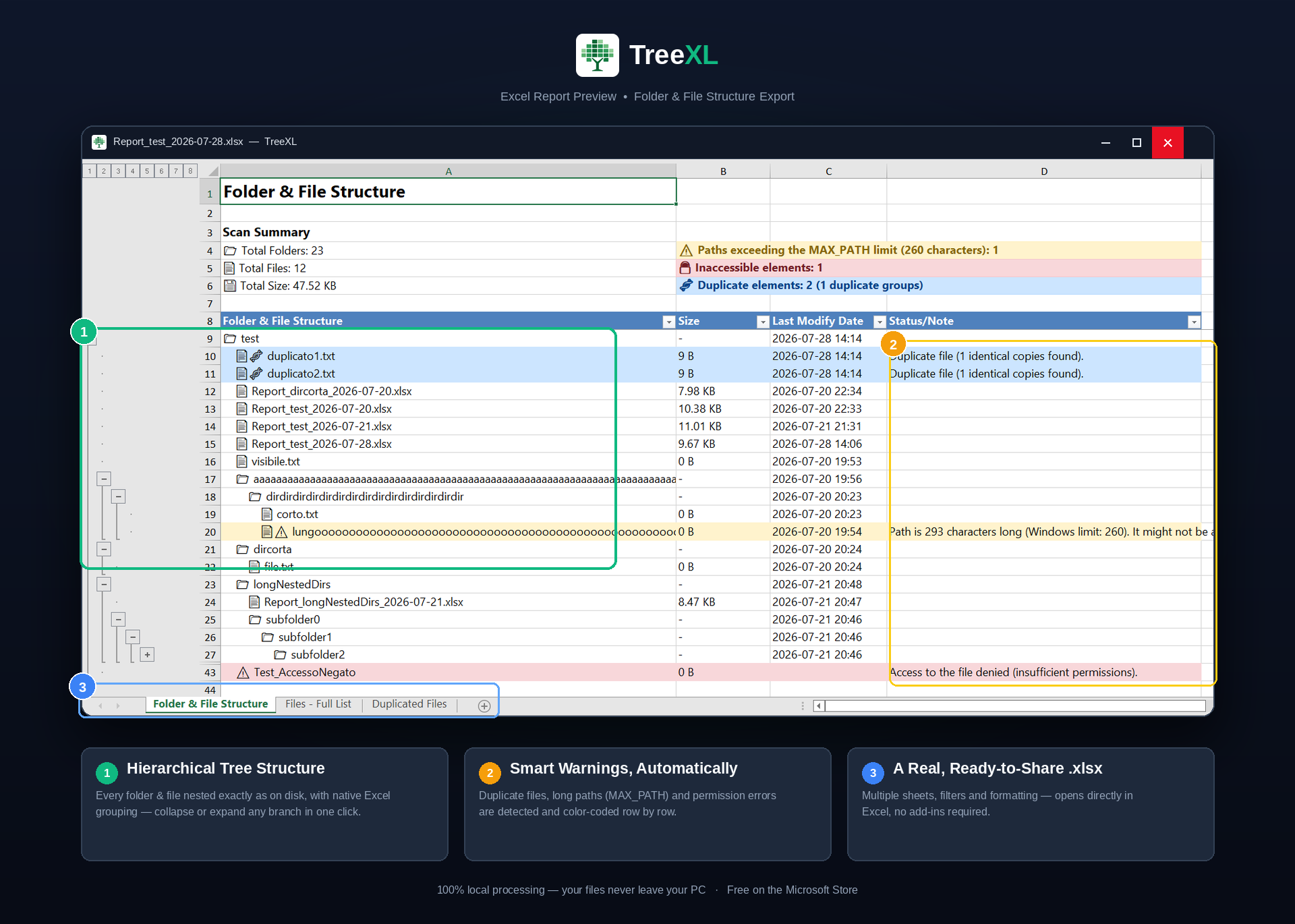
A traditional folder tree is useful for seeing the hierarchy. TreeXL takes that structure further by generating a formatted Excel workbook that can be filtered, shared and documented.
What Is a Folder Tree Generator?
A folder tree generator creates a structured representation of the files and folders inside a directory. Instead of manually opening every folder in Windows File Explorer, a folder tree gives you a single overview of the structure.
Folder trees are useful when you need to understand, document, review or share the organization of a large collection of files.
The same concept can be represented in a structured Excel report, making it easier to filter, sort, review and share the information with other people.
Why Create a Folder Tree?
A folder tree can be useful whenever the structure of a directory matters as much as the individual files inside it.
Documentation
Create a snapshot of a project folder, shared drive or file server for technical documentation.
Migration Projects
Review the structure of source data before moving files to another server, storage system or platform.
IT Audits
Produce a readable inventory that can be reviewed by IT teams, consultants or project stakeholders.
Project Handover
Give another person a clear overview of how project files are organized.
How to Generate a Folder Tree in Windows
Windows users have several ways to inspect a folder structure. The best approach depends on whether you need a quick text representation, a scriptable workflow or a formatted report.
1. Use the Windows tree command
Windows includes the tree command, which can
display a directory structure directly from Command Prompt.
You can also redirect the output to a text file:
This is convenient when you simply need a textual view of a directory. However, the resulting text file is not a formatted Excel report and provides limited options for further analysis.
2. Use PowerShell
PowerShell can recursively enumerate files and folders and is particularly useful when you need custom automation.
With additional scripting, PowerShell can transform the results into CSV or other formats. Building a polished hierarchical Excel report, however, can require considerably more scripting.
3. Use TreeXL
TreeXL is designed for the situation where you want the result rather than a script: select a folder from Windows File Explorer, run TreeXL and generate a formatted Excel report containing the folder structure.
Why a Text Folder Tree Is Not Always Enough
A text-based tree is excellent for quickly seeing the hierarchy, but professional file documentation often needs more information than a visual tree can provide.
File Information
An Excel report can organize file and folder data into columns that are easier to filter and review.
Large Structures
Very large directory structures can be difficult to inspect in a single text document.
Review and Sharing
Excel is familiar to most business and IT users and is easier to annotate and share than command-line output.
Problem Detection
TreeXL can highlight duplicate files, long paths and inaccessible items during the scan.
Generate a Folder Tree with TreeXL
TreeXL is built around a simple Windows workflow. Instead of opening Command Prompt, writing a PowerShell script or manually assembling an Excel workbook, you can start from the folder itself.
Step 1 — Select a Folder
Open Windows File Explorer and select the folder you want to document.
Step 2 — Run TreeXL
Launch TreeXL directly from the Windows File Explorer context menu.
Step 3 — Generate the Report
TreeXL scans the directory and creates a structured Excel report.
Export the Folder Tree to Excel
One of the main advantages of generating a folder tree in Excel is that the resulting information can be used as a working document rather than simply viewed as text.
You can use the report for documentation, review, filtering, sorting and sharing with colleagues or clients.
Folder Trees, Long Paths and Inaccessible Folders
Real-world Windows directories are not always clean. A scan can encounter folders that cannot be accessed, very long paths or files that appear more than once.
These cases are important when a folder tree is being used for an inventory or migration project. A report that simply lists successful results may not make it obvious that part of the directory could not be inspected.
TreeXL is designed to surface relevant issues such as long paths, inaccessible items and duplicate files so they can be reviewed as part of the resulting report.
Common Folder Tree Use Cases
File Server Documentation
Document the structure of shared folders and file servers before an infrastructure change.
Data Migration
Create an inventory before moving data between servers, drives or storage systems.
Software Projects
Document source code, build output, assets, documentation and project directories.
Client Deliverables
Provide clients with a structured overview of delivered files and project folders.
Data Management
Review large collections of documents and identify areas that may require cleanup.
IT Troubleshooting
Quickly inspect the structure of a directory when investigating file organization or access issues.
Folder Tree Command vs PowerShell vs TreeXL
Each approach has its place. The right choice depends on whether you need command-line output, automation or a ready-to-use report.
| Feature | tree command | PowerShell | TreeXL |
|---|---|---|---|
| Graphical workflow | No | No | Yes |
| Requires scripting | No | Usually | No |
| Folder hierarchy | Yes | Yes | Yes |
| Excel report | No | Requires additional work | Yes |
| Duplicate detection | No | Requires scripting | Yes |
| Long-path warnings | Limited | Requires scripting | Yes |
| Inaccessible item reporting | Limited | Requires handling | Yes |
Who Can Benefit from a Folder Tree Generator?
A folder tree generator can be useful to anyone who needs to understand or document a significant Windows file structure.
Typical users include system administrators, IT professionals, developers, data managers, consultants, freelancers and project teams .
It can be particularly useful when the person reviewing the directory is not the same person who originally created it. A structured report provides a common reference point.
Frequently Asked Questions
What is a folder tree generator?
A folder tree generator creates a structured representation of the folders and files contained inside a directory. It can be used for documentation, inventory, migration and file management.
How can I create a folder tree on Windows?
Windows provides command-line tools such as the
tree command and PowerShell. TreeXL provides
a graphical alternative that can export the scanned
structure to a formatted Excel report.
Can I export a folder tree to Excel?
Yes. TreeXL scans a Windows folder and exports its files and subfolders to a formatted .xlsx report.
Can TreeXL handle large folder structures?
TreeXL is designed to scan Windows folder structures and report relevant issues such as long paths and inaccessible items.
Do I need PowerShell to generate a folder tree?
No. TreeXL provides a graphical workflow from Windows File Explorer, so you do not need to write a PowerShell script for a folder-to-Excel report.
Generate Your First Folder Tree
Stop manually documenting complex folder structures. Download TreeXL and turn a Windows directory into a professional Excel report.
Download TreeXL Free →